
Download eXMS Tab – Free Mac Social‑Networking Tool for Secure Messaging
Overview
eXMS Tab is a free, lightweight program designed exclusively for macOS users who want a dedicated social‑networking hub without the bloat of larger platforms. Developed by Everton Postay Cunha, this English‑language app focuses on delivering a secure, tab‑based interface that lets you manage multiple conversations, groups, and media streams from a single window. Whether you’re a freelancer juggling client chats, a gamer coordinating with teammates, or simply someone who prefers a tidy workspace, eXMS Tab provides a streamlined experience that feels both modern and familiar.
The app’s core philosophy is “do one thing well”: it consolidates messaging, file sharing, and quick status updates while staying out of the way of your primary workflow. Because it’s free, you can download and start using it instantly, with regular updates that keep security patches and feature enhancements current. In short, eXMS Tab is the go‑to solution for Mac users seeking a secure, free, and efficient social‑networking tool that integrates seamlessly with the Apple ecosystem.
Key Features of eXMS Tab
- Tab‑Based Conversation Management: Open each chat in its own tab, switch instantly, and keep conversations organized without clutter.
- End‑to‑End Encryption: All messages, files, and media are encrypted on the fly, ensuring privacy for personal and professional exchanges.
- Cross‑Platform Sync: Though the app runs on macOS, it syncs with web‑based eXMS accounts, allowing seamless access from any device.
- Rich Media Support: Drag‑and‑drop photos, videos, and documents directly into chats; the app automatically generates previews.
- Customizable Themes: Choose between light, dark, and high‑contrast themes to match your visual preferences and reduce eye strain.
- Quick Status Updates: Set availability, mood, or short status messages that appear next to your name in all chats.
- Search‑Powered History: Powerful keyword search across all conversations, with filters for date, participants, and file type.
- Notification Center Integration: macOS native notifications keep you informed without breaking concentration.
- Free Updates & Support: Regular software updates are provided at no cost, and a dedicated support forum is available for troubleshooting.
- Low System Footprint: Optimized for macOS, the app consumes minimal RAM and CPU, preserving battery life on laptops.
Installation & Usage Instructions
Getting started with eXMS Tab is straightforward, even for users who are new to macOS software installations. Follow the step‑by‑step guide below to download, install, and make the most of the app’s capabilities.
Step 1: Download the Installer
Visit the official eXMS Tab website or a trusted software repository. Click the “Download for macOS” button – the file will be a .dmg disk image named eXMS‑Tab.dmg. Because the program is free, there are no hidden fees or trial periods.
Step 2: Install the Application
- Open the downloaded
.dmgfile. A window will appear showing the eXMS Tab icon and an Applications folder shortcut. - Drag the eXMS Tab icon onto the Applications folder. macOS will copy the app to your system, preserving the original file permissions.
- Once copying finishes, eject the disk image by clicking the eject button next to its name in Finder.
Step 3: Launch and Configure
- Navigate to the Applications folder and double‑click eXMS Tab. The first launch may prompt you to confirm that you trust the developer; click “Open”.
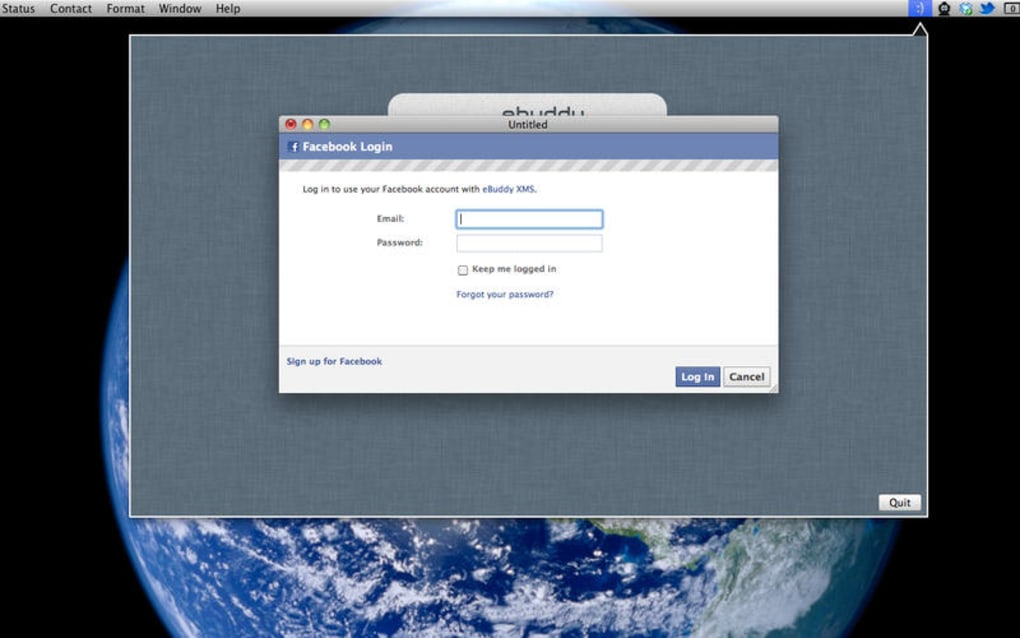
- Create a new eXMS account or sign in with an existing one. The registration process requires an email address and a strong password; two‑factor authentication is optional but recommended for added security.
- After signing in, you’ll be greeted by the main tab interface. Use the “+” button to open a new chat tab, or import contacts from your macOS address book.
Step 4: Daily Usage Tips
- Keyboard Shortcuts: Press
⌘+Tto open a new tab,⌘+Wto close the current tab, and⌘+Fto activate the search bar. - File Sharing: Drag files from Finder directly into a chat window; they will upload automatically and appear as clickable links.
- Theme Switching: Go to Settings → Appearance to toggle between light and dark modes without restarting the app.
- Notification Controls: In Settings → Notifications, customize which chats trigger alerts and set “Do Not Disturb” periods.
By following these steps, you’ll have a fully functional eXMS Tab environment ready for personal or professional communication. The app’s intuitive design means you’ll spend more time chatting and less time configuring.
Pros and Cons – Balanced Assessment
Pros
- Free and Open Access: No subscription fees, making it ideal for budget‑conscious users.
- Robust Security: End‑to‑end encryption safeguards conversations against eavesdropping.
- Mac‑Optimized Performance: Low memory usage and smooth UI ensure a responsive experience.
- Tab‑Based Organization: Keeps multiple chats tidy and easily navigable.
- Regular Updates: The developer releases frequent patches that improve stability and add features.
Cons
- macOS‑Only Desktop Client: No native Windows or Linux version, though web sync is available.
- Limited Third‑Party Integrations: Currently lacks direct integration with popular productivity suites like Slack or Microsoft Teams.
- Feature Set Still Growing: Advanced functionalities such as voice calls or AI‑powered chat assistants are not yet implemented.
- Support Relies on Community Forums: While helpful, response times can vary compared to dedicated support lines.
Overall, eXMS Tab delivers a secure, free, and highly organized messaging experience for Mac users. Its tab system, encryption, and low resource footprint make it a compelling alternative to larger, ad‑supported platforms. The main drawbacks—lack of native Windows support and limited integrations—are outweighed by its core strengths, especially for users who prioritize privacy and simplicity.
Conclusion & Call to Action
If you’re looking for a free, secure, and macOS‑centric social‑networking tool, eXMS Tab checks all the boxes. Its tab‑based design eliminates clutter, while built‑in encryption keeps your conversations private. The app’s minimal system impact ensures that you can run it alongside other productivity tools without compromising performance. Although it currently lacks native Windows support and deeper third‑party integrations, the developer’s commitment to regular updates signals a bright future for the platform. Download eXMS Tab today, create your account, and experience a cleaner, safer way to stay connected on your Mac.
Frequently Asked Questions
Is eXMS Tab completely free to use?
Yes, eXMS Tab is offered at no cost. There are no hidden fees, subscription plans, or premium tiers. All core features—including encryption and tab management—are available for free.
Can I use eXMS Tab on Windows or Linux?
Currently, eXMS Tab provides a native desktop client only for macOS. However, the service supports web access, allowing you to log in through any modern browser on Windows or Linux.
How secure is the messaging in eXMS Tab?
All messages, files, and media are protected with end‑to‑end encryption. The encryption keys are generated on your device and never stored on the server, ensuring that only you and your conversation partner can read the content.
Does eXMS Tab support file sharing?
Yes. You can drag and drop photos, videos, PDFs, and other documents directly into any chat tab. The app creates preview thumbnails and retains the original file format for easy download.
How do I receive updates for eXMS Tab?
The app checks for updates automatically on launch. When a new version is available, macOS will prompt you to download and install it, ensuring you always have the latest security patches and features.
Ready to simplify your digital conversations? Click here to download eXMS Tab now and start chatting securely on your Mac today.







